Hello World
 Level | 0 |
|---|---|
| Core? | Core |
 Duration | 5 minutes |
| Duration (minutes) | 5 |
 Learn | CaptionDashboardsHomepageToolbar |
 Prerequisite |
Intro
This mini project will guide you through the steps necessary to create a homepage dashboard that displays the text "Hello World!" on the screen. With the help of this project, you will learn how to access and customize the homepage of your database solution.
What you will learn
- WHERE to customize the homepage
- HOW to customize the homepage
- HOW to add a custom caption to the homepage
- HOW to save a homepage
- HOW to view the homepage
- HOW to quickly add the homepage to your toolbar
FAQs
- How do I install Digital-Clay? To install Digital-Clay, download and install the “Clients” and “Clay Central Server” from the downloads page on the Digital-Clay website. Detailed instructions on how to install and setup Digital-Clay can be found in the "Download, Install, and Activation" section of the Ultimate Guide to No-Code with Digital-Clay.
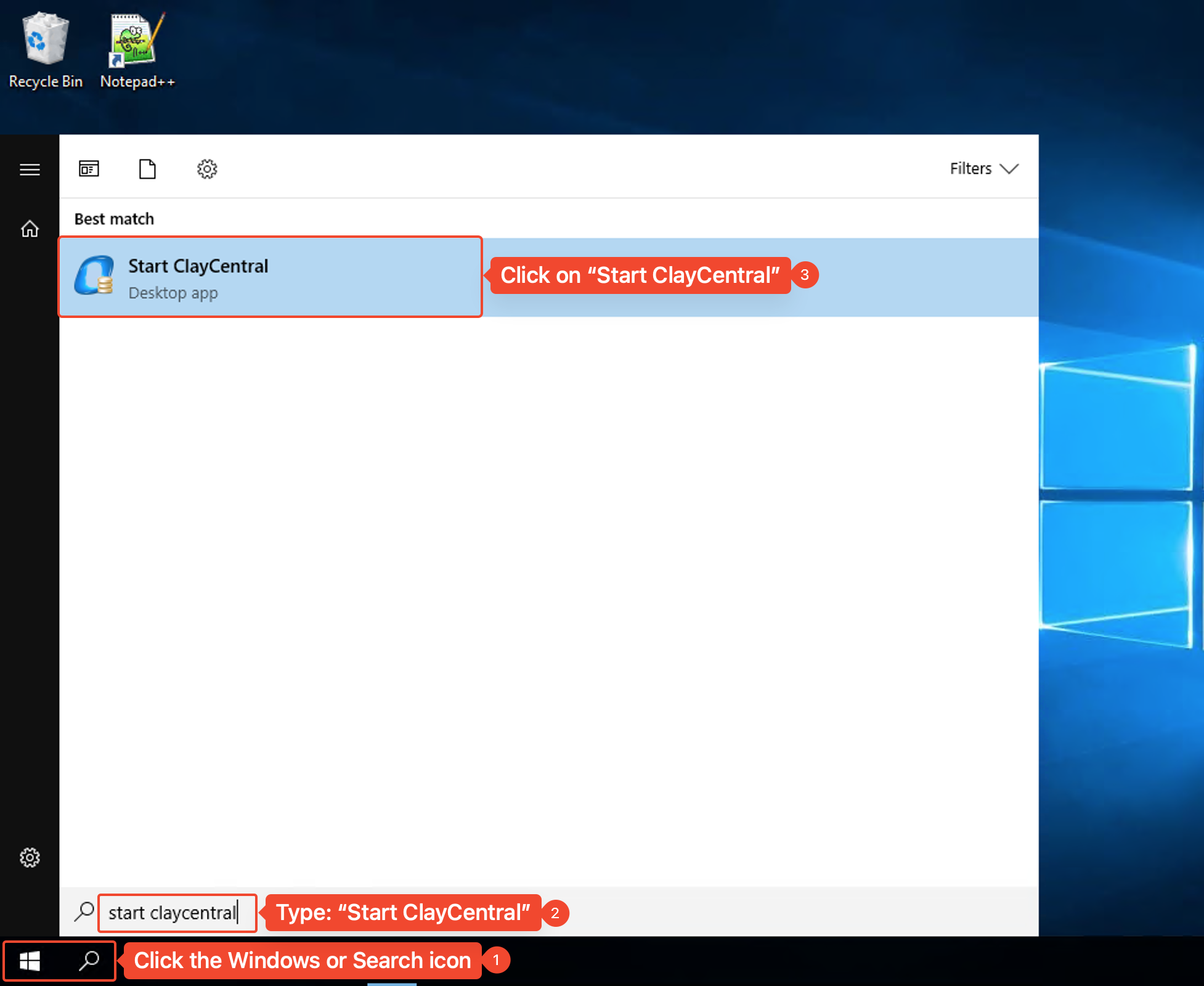
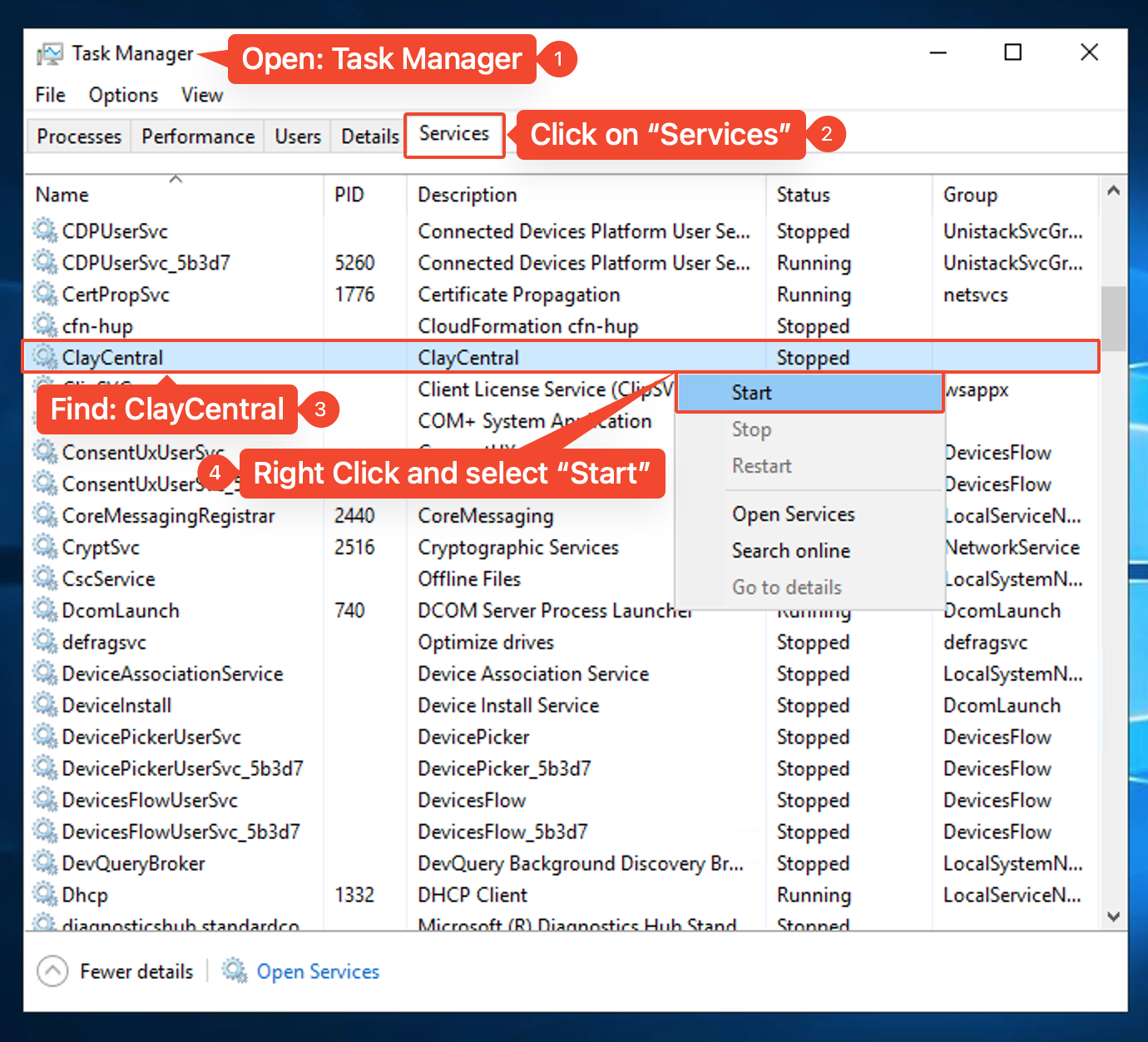
- How do I start Clay Central? You can either search “Start ClayCentral” and run the exe file or manually start the “Clay Central” service from the Task Manager window.
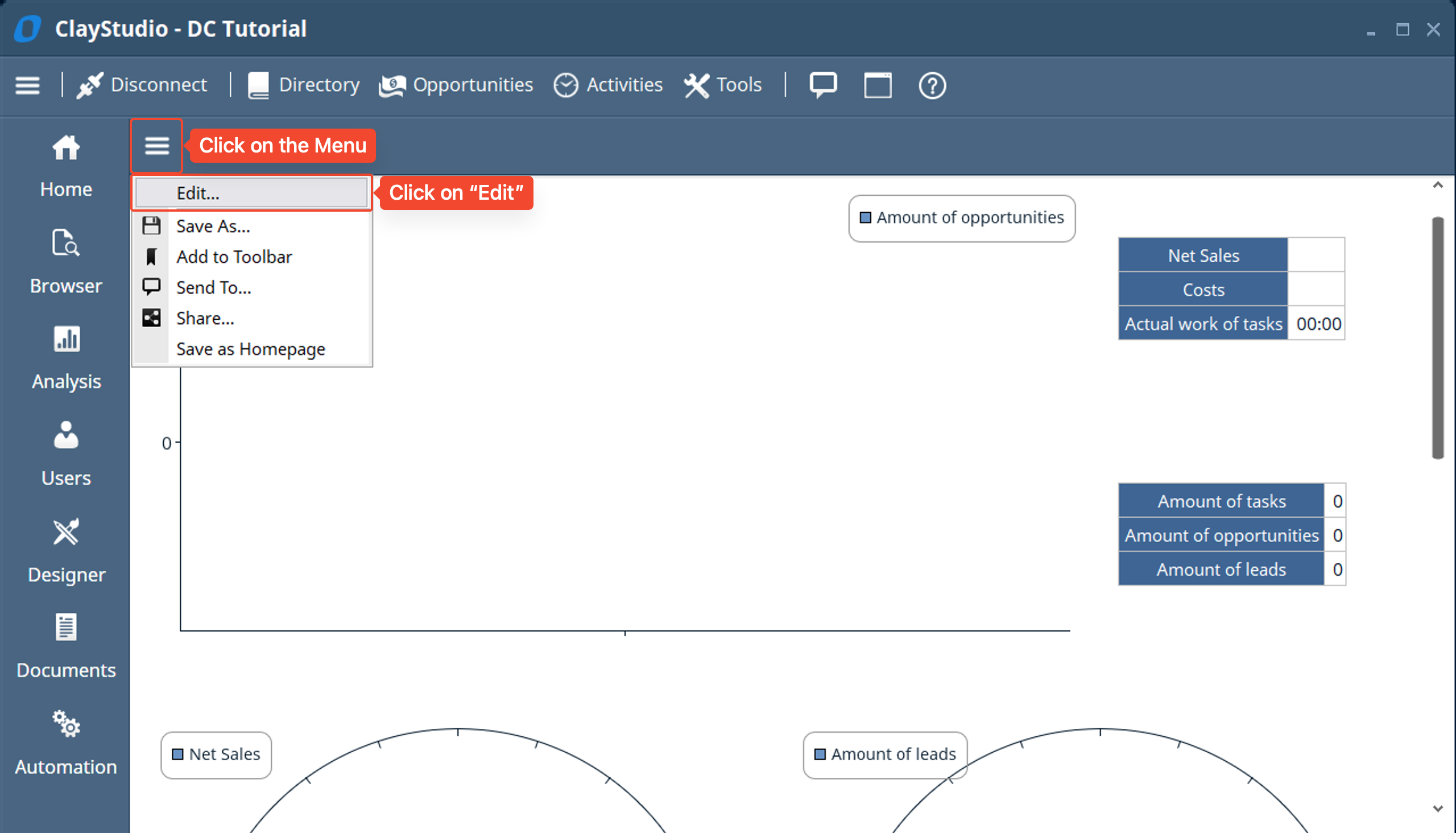
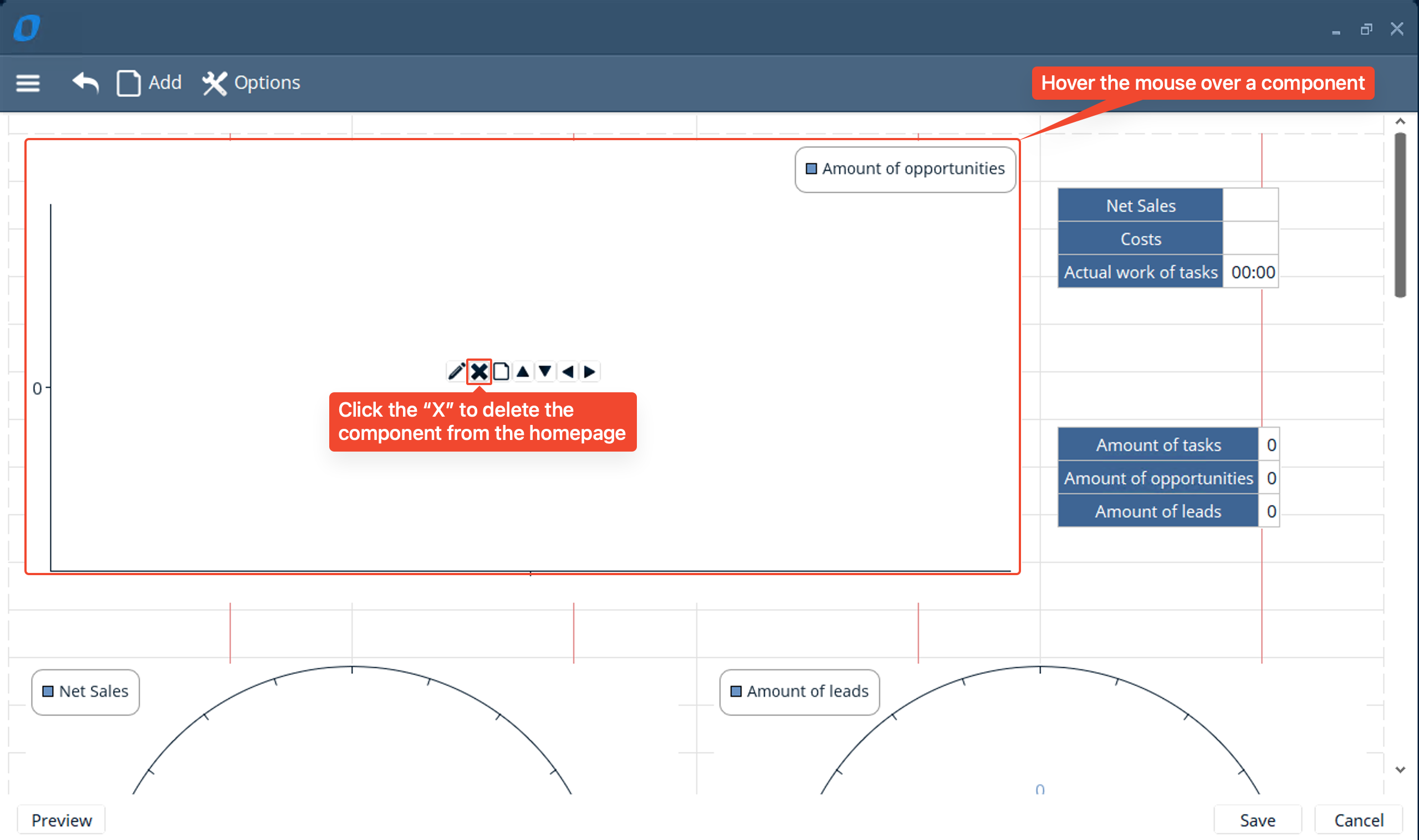
- How do I customize the homepage? To customize or edit the homepage, click on the menu button and click on “Edit…”. You can then delete the current components in this homepage dashboard by hovering over the component and clicking the “X” button.
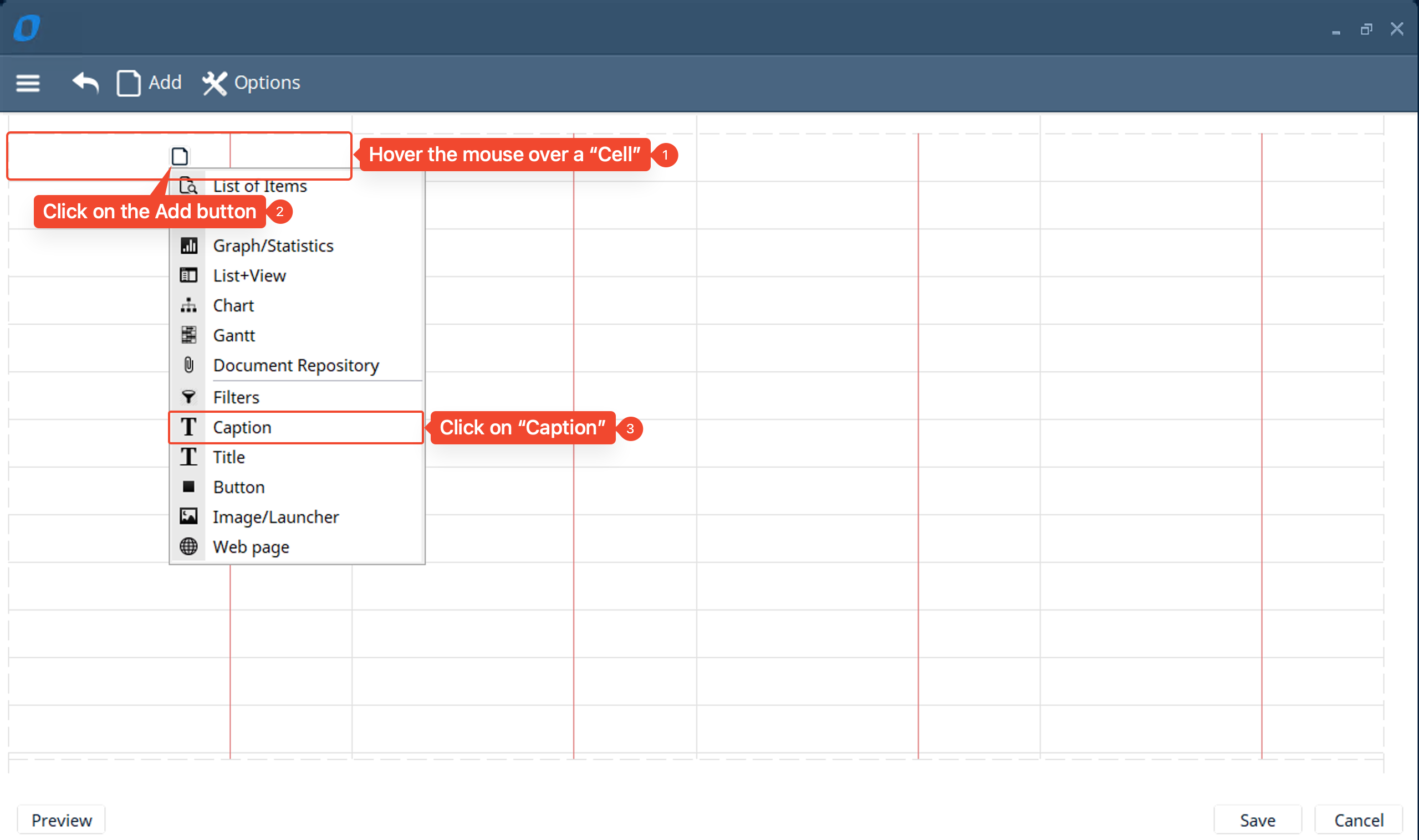
- How do I add a caption to the homepage? To add a caption, hover your mouse over a cell → click on the “Add” button → click on “Caption”. A caption window will pop up where you can type the desired text and make adjustments to the related field, foreground color, background color, and font.
- How do I save a homepage? Once you are finished customizing the homepage, click on “Save” to save your changes.
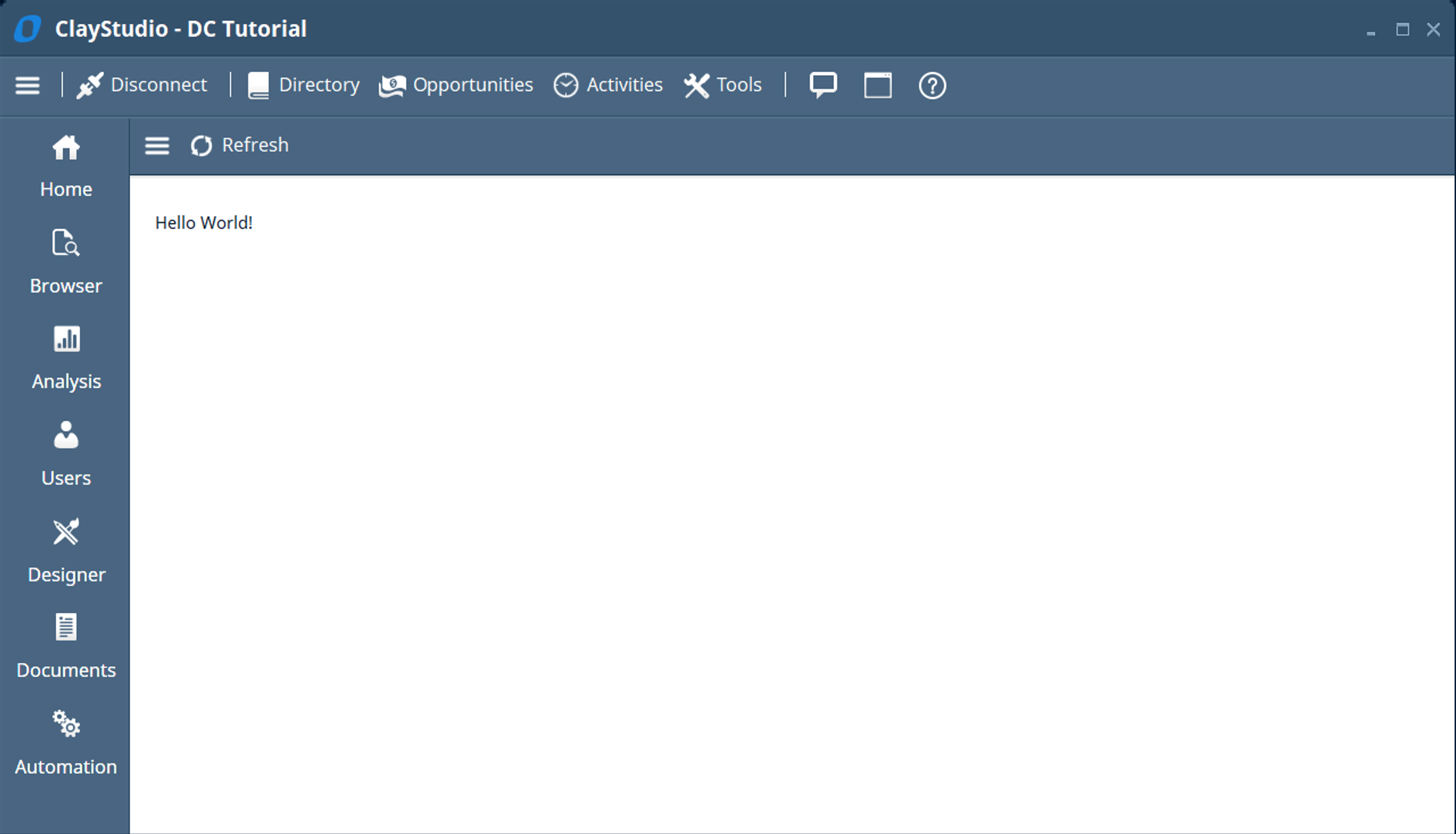
- How do I view the homepage? To view the homepage, click on the “Home” button on the left side of the screen.
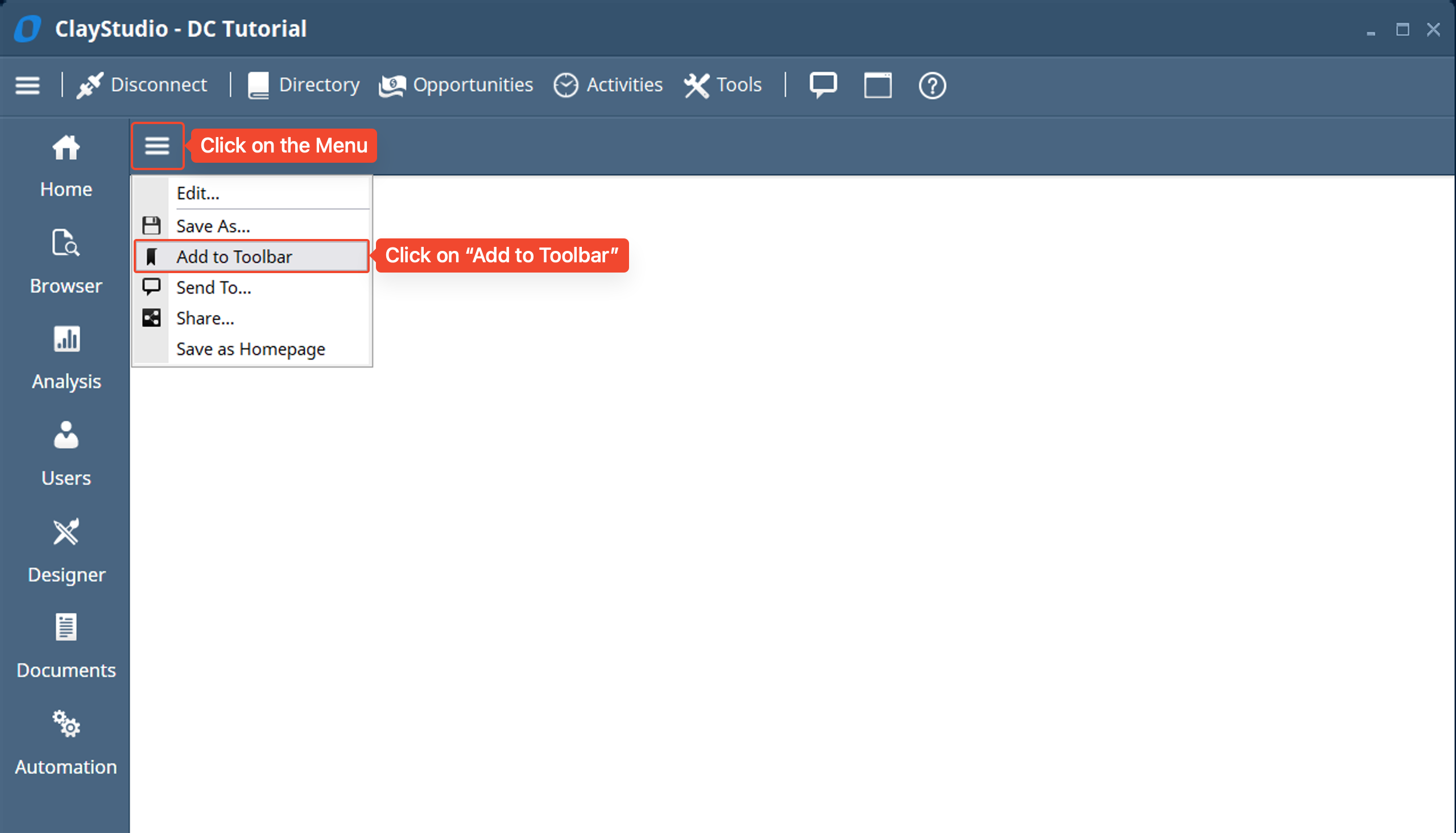
- How do I add the homepage to my toolbar? To add the homepage to your toolbar, click on the menu button → then click on “Add to Toolbar”. A window will pop up asking you to fill out a a caption for the toolbar item, select the category the toolbar item should be apart of, and a description of the toolbar item.
- How do I change the background and foreground colors of a caption? In the caption window, you can edit the foreground color, background color, and font
Instructions
- Make sure you download and install Digital-Clay “Clients” and “Clay Central Server” from our downloads page here.
- If you are having trouble installing and setting up Digital-Clay on your computer then please follow the detailed explanation on Download, Install, and Activation section of the Ultimate Guide to No-Code with Digital-Clay which explains step-by-step how to install and setup Digital-Clay on your computer with helpful screenshots so you can easily follow along with the install and setup process
- Open Clay Studio and Log In to Clay Studio
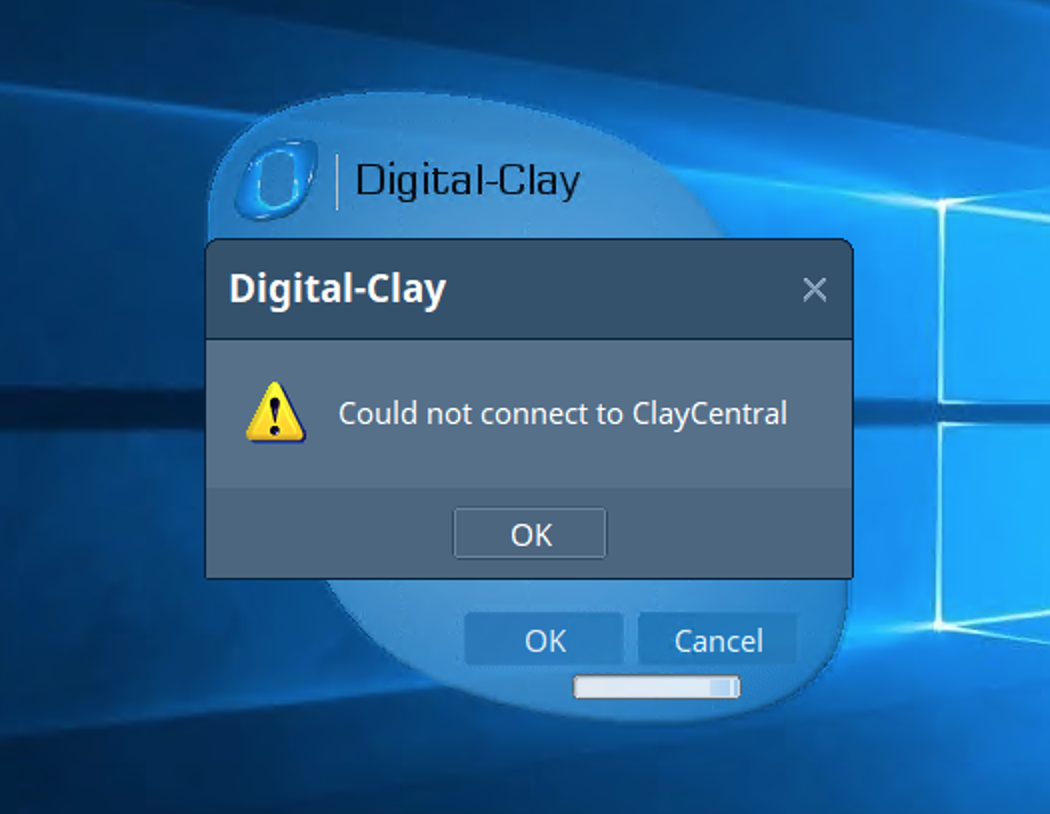
- If you get the error “Could not connect to ClayCentral” when trying to log in to Clay Studio then try searching “Start ClayCentral” and run the exe file
- Conversely, you can manually start the “Clay Central” service from the Task Manager window
- If you get the error “Could not connect to ClayCentral” when trying to log in to Clay Studio then try searching “Start ClayCentral” and run the exe file
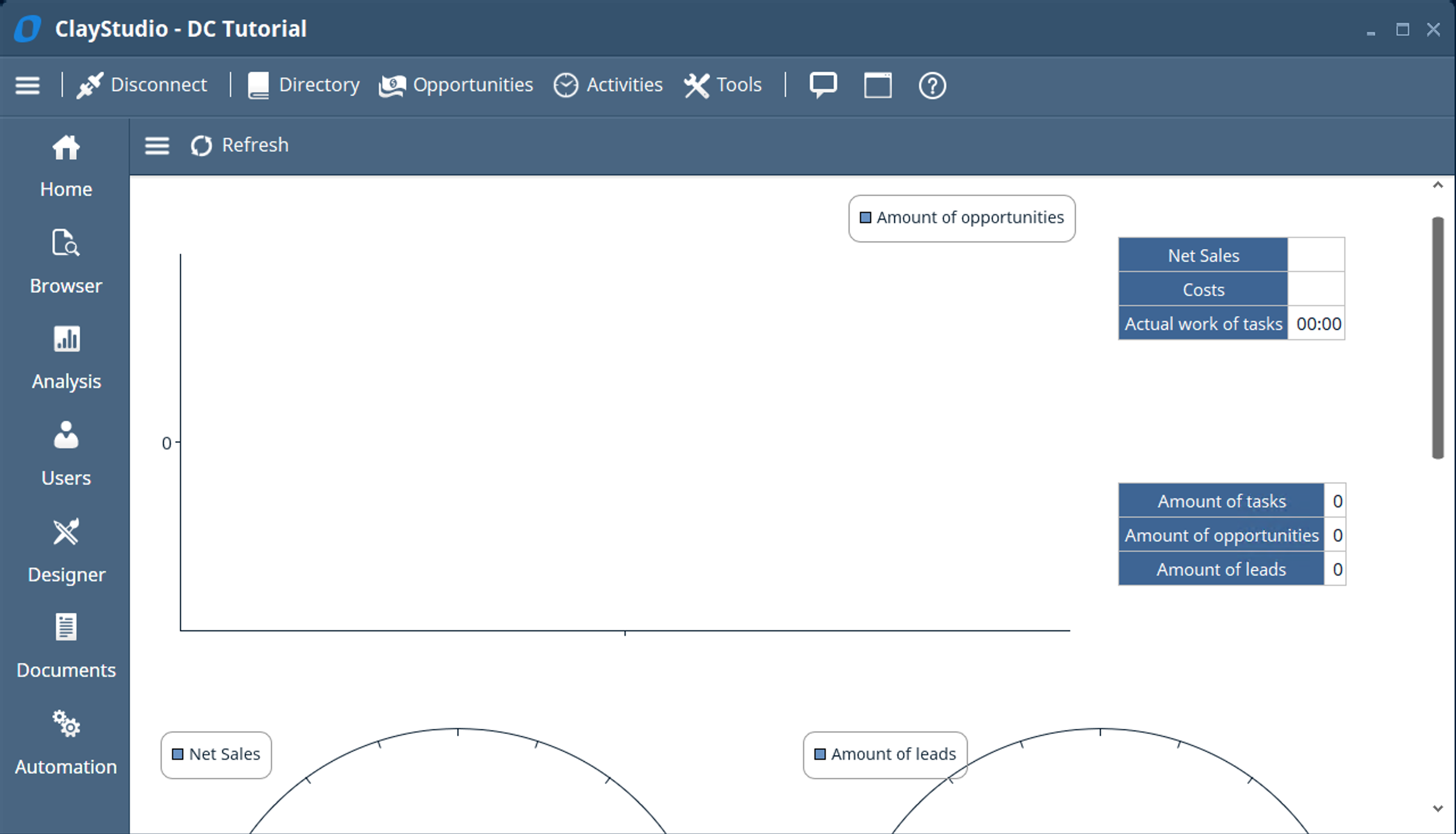
- On the left of the screen click on the “Home” button to view the current (default) homepage
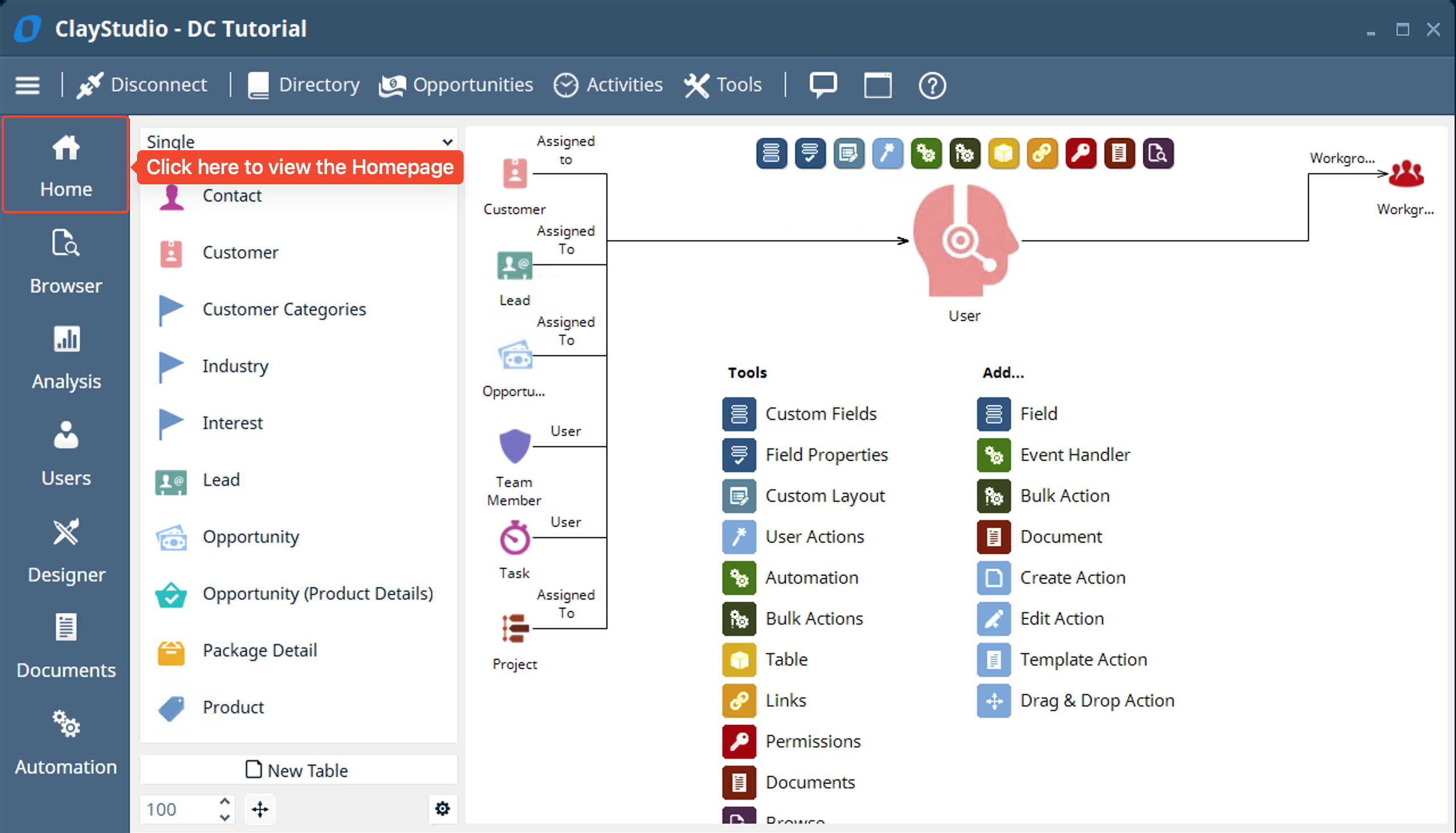
- Digital-Clay comes with a few built in tables and the current homepage dashboard will show you an analysis based on the information you add to the built in tables (opportunities, leads, tasks, etc). But we want to change this to only say “Hello World!”
- To customize or edit this homepage simply click on the menu button and click on “Edit…”
- A window to customize the homepage screen you just saw pops up. You can delete the current components in this homepage dashboard by hovering over the component and clicking the “X” button. Do this for all components in the homepage so that it is empty
- Once the homepage dashboard is empty… hover the mouse over a cell → click on the “Add” button → click on “Caption” so that you can add the “Hello World!” text to your homepage
- To add the “Caption” you could also click the “Add” button in the toolbar next to “Options”
- To add the “Caption” you could also click the “Add” button in the toolbar next to “Options”
- A caption window will pop up. Type “Hello World!” into the caption box and click OK
- In this caption window you can also edit the: Related Field, Foreground color, Background color, and Font
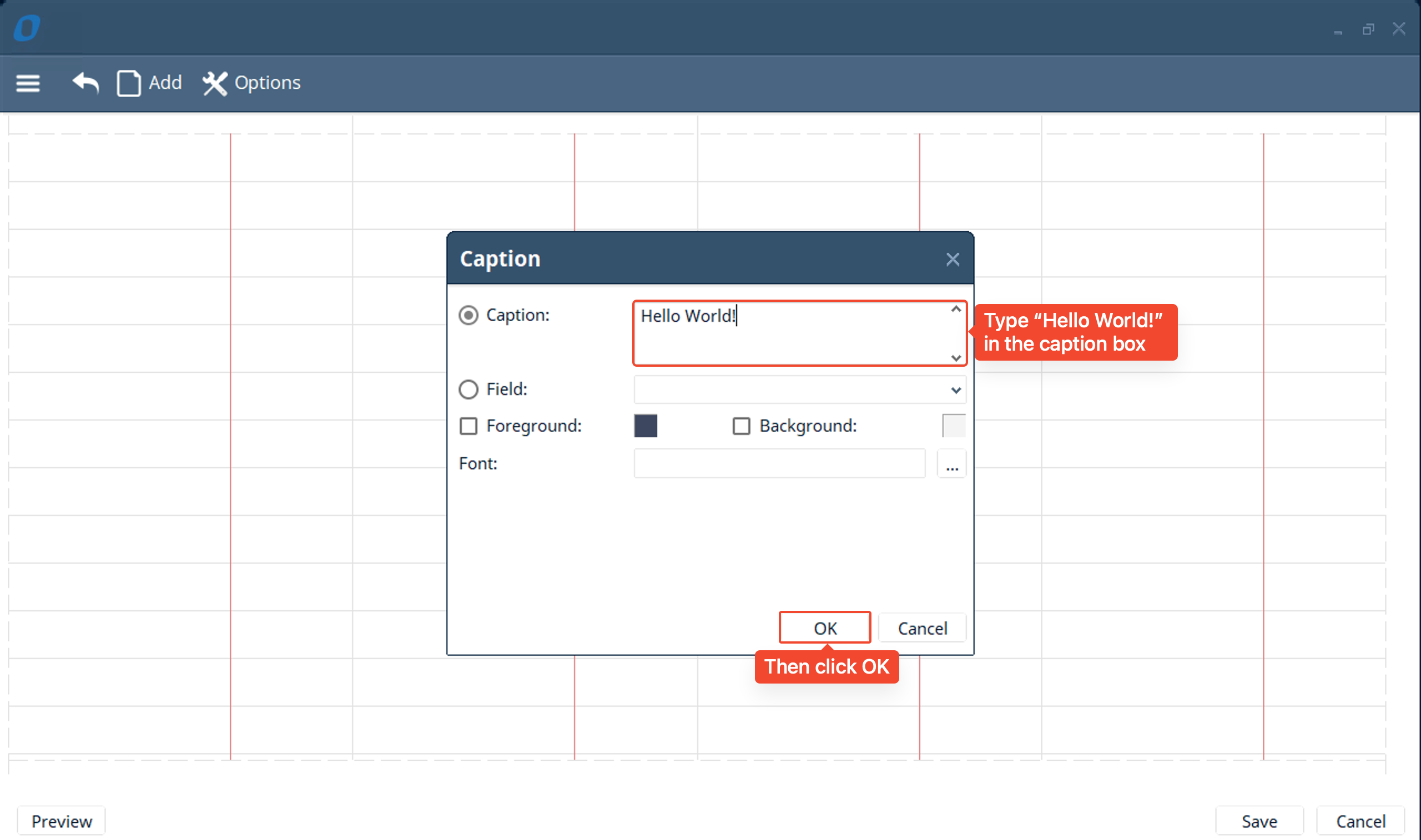
- In this caption window you can also edit the: Related Field, Foreground color, Background color, and Font
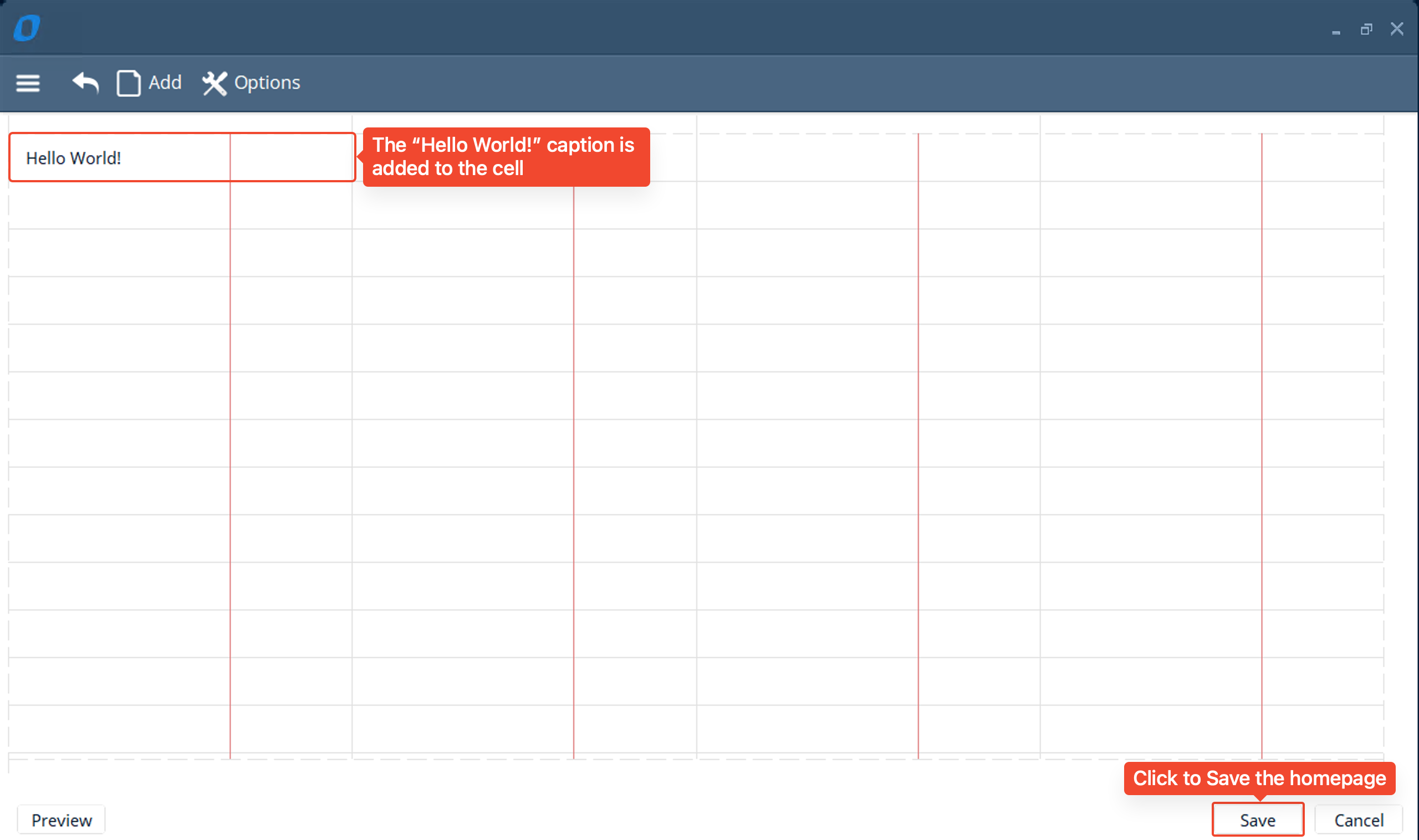
- You will see the “Hello World!” caption get added to the Cell that you hovered over. Lastly click on “Save” to save the homepage you are editing
- Congratulations! You have successfully edited the homepage to display “Hello World!”
- If you wanted to add this homepage to your toolbar simply click on the menu button → then click on “Add to Toolbar”
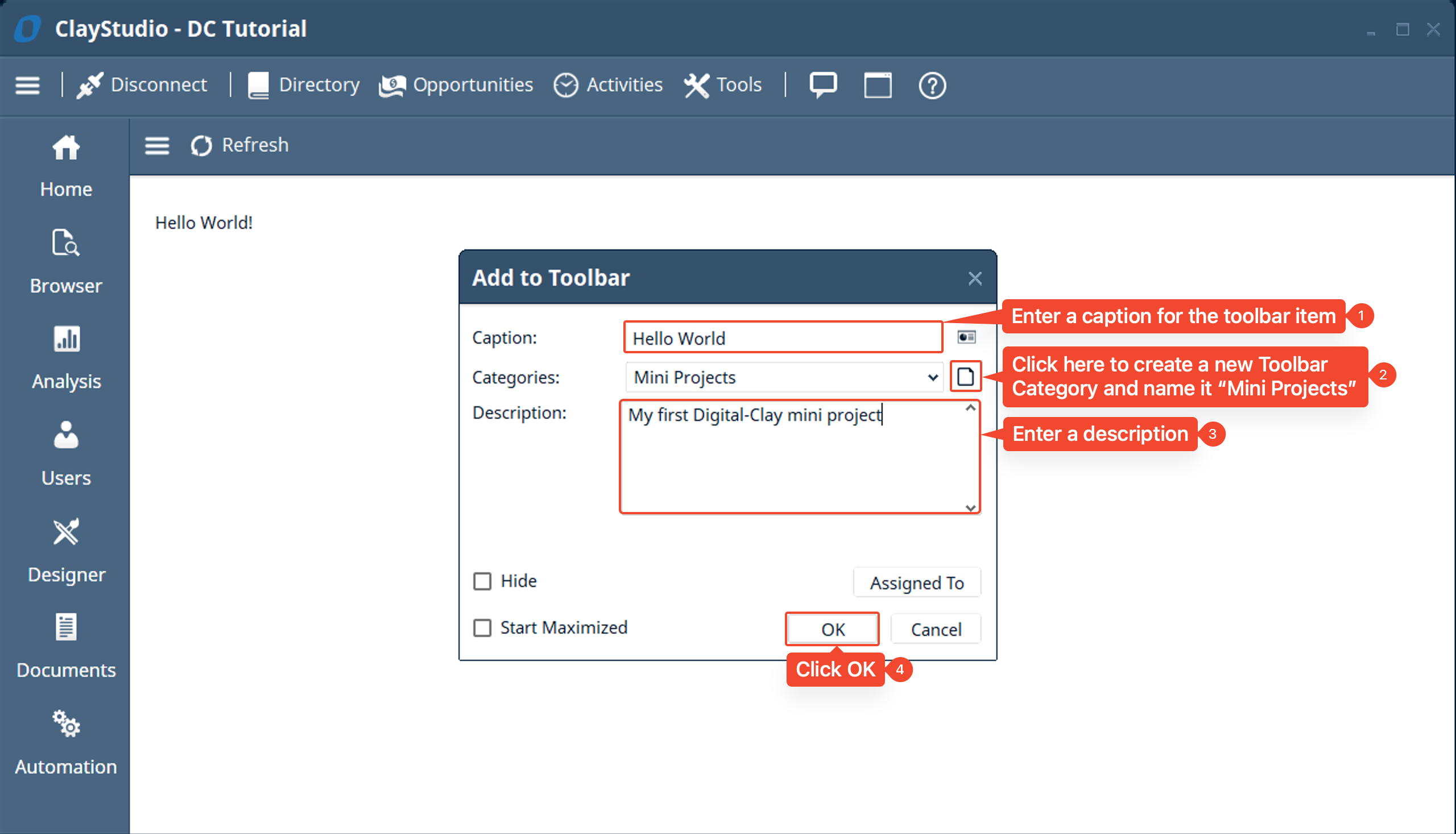
- A window will pop up asking you to fill out a a caption for the toolbar item, select the category the toolbar item should be apart of, and a description of the toolbar item along with other settings that we will cover in future mini projects. Follow the instructions on the screenshot below
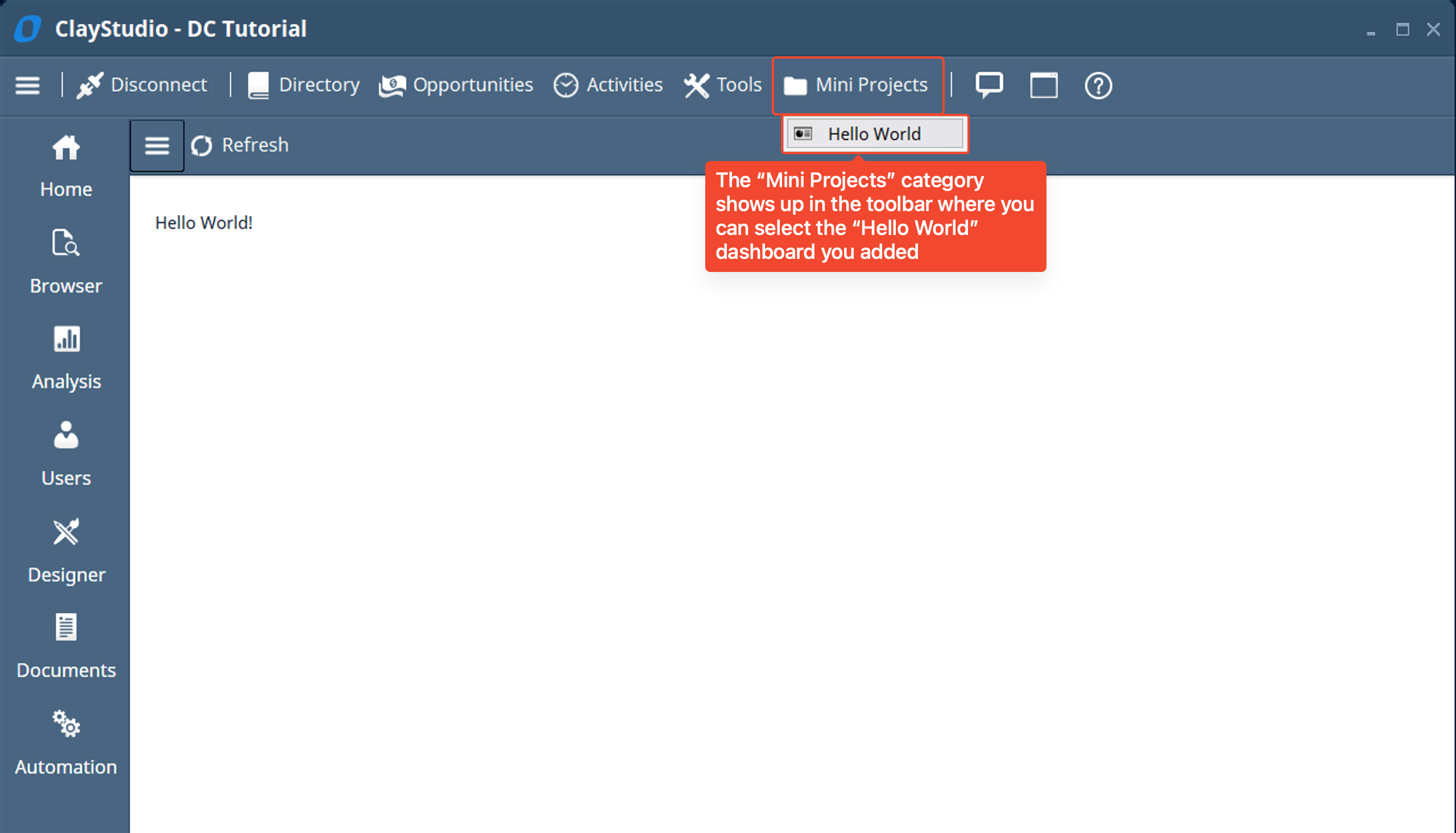
- The toolbar should automatically update and display the new “Mini Projects” Category in the toolbar along with the “Hello World” dashboard inside the category
- Congratulations! You completed your first mini project
Challenge
Using what you learned in the above steps add, edit the home page and add another caption field. This time choose what you want it to say but change the background color and foreground color of the caption field